Quick Guide - JavaScript : PART II
https://opensource-experts.blogspot.com/2017/03/quick-guide-javascript.html
Flow Chart
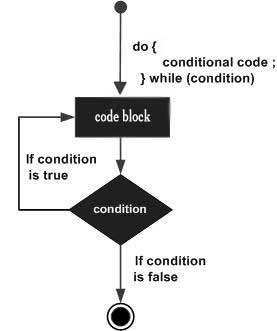
The flow chart of a do-while loop would be as follows −
Syntax
The syntax for do-while loop in JavaScript is as follows −
do{
   Statement(s) to be executed;
} while (expression);
Note − Don’t miss the semicolon used at the end of the do...while loop.
Example
Try the following example to learn how to implement a do-while loop in JavaScript.
--> Set the variable to different value and then try...
Output
Starting Loop
Current Count : 0
Current Count : 1
Current Count : 2
Current Count : 3
Current Count : 4
Loop Stopped!
Set the variable to different value and then try...
JavaScript - For Loop
The 'for' loop is the most compact form of looping. It includes the following three important parts −
- The loop initialization where we initialize our counter to a starting value. The initialization statement is executed before the loop begins.
- The test statement which will test if a given condition is true or not. If the condition is true, then the code given inside the loop will be executed, otherwise the control will come out of the loop.
- The iteration statement where you can increase or decrease your counter.
You can put all the three parts in a single line separated by semicolons.
Flow Chart
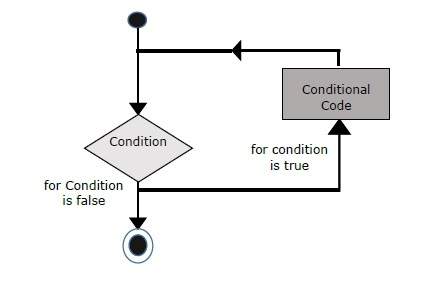
The flow chart of a for loop in JavaScript would be as follows −
Syntax
The syntax of for loop is JavaScript is as follows −
for (initialization; test condition; iteration statement){
   Statement(s) to be executed if test condition is true
}
Example
Try the following example to learn how a for loop works in JavaScript.
--> Set the variable to different value and then try...
Output
Starting Loop
Current Count : 0
Current Count : 1
Current Count : 2
Current Count : 3
Current Count : 4
Current Count : 5
Current Count : 6
Current Count : 7
Current Count : 8
Current Count : 9
Loop stopped!
Set the variable to different value and then try...
JavaScript for...in loop
The for...in loop is used to loop through an object's properties. As we have not discussed Objects yet, you may not feel comfortable with this loop. But once you understand how objects behave in JavaScript, you will find this loop very useful.
Syntax
for (variablename in object){
   statement or block to execute
}
In each iteration, one property from object is assigned to variablename and this loop continues till all the properties of the object are exhausted.
Example
Try the following example to implement ‘for-in’ loop. It prints the web browser’s Navigator object.
--> Set the variable to different object and then try...
Output
Navigator Object Properties
serviceWorker
webkitPersistentStorage
webkitTemporaryStorage
geolocation
doNotTrack
onLine
languages
language
userAgent
product
platform
appVersion
appName
appCodeName
hardwareConcurrency
maxTouchPoints
vendorSub
vendor
productSub
cookieEnabled
mimeTypes
plugins
javaEnabled
getStorageUpdates
getGamepads
webkitGetUserMedia
vibrate
getBattery
sendBeacon
registerProtocolHandler
unregisterProtocolHandler
Exiting from the loop!
Set the variable to different object and then try...
JavaScript - Loop Control
JavaScript provides full control to handle loops and switch statements. There may be a situation when you need to come out of a loop without reaching its bottom. There may also be a situation when you want to skip a part of your code block and start the next iteration of the loop.
To handle all such situations, JavaScript provides break and continue statements. These statements are used to immediately come out of any loop or to start the next iteration of any loop respectively.
The break Statement
The break statement, which was briefly introduced with the switch statement, is used to exit a loop early, breaking out of the enclosing curly braces.
Flow Chart
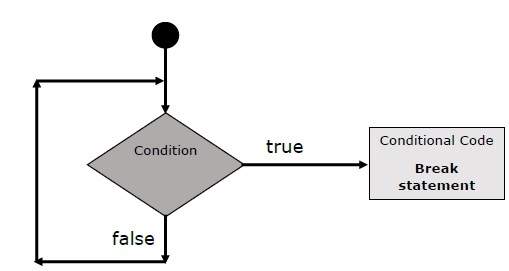
The flow chart of a break statement would look as follows −
Example
The following example illustrates the use of a break statement with a while loop. Notice how the loop breaks out early once x reaches 5 and reaches to document.write (..) statement just below to the closing curly brace −
--> Set the variable to different value and then try...
Output
Entering the loop
2
3
4
5
Exiting the loop!
Set the variable to different value and then try...
We already have seen the usage of break statement inside a switch statement.
The continue Statement
The continue statement tells the interpreter to immediately start the next iteration of the loop and skip the remaining code block. When a continue statement is encountered, the program flow moves to the loop check expression immediately and if the condition remains true, then it starts the next iteration, otherwise the control comes out of the loop.
Example
This example illustrates the use of a continue statement with a while loop. Notice how the continue statement is used to skip printing when the index held in variable x reaches 5 −
--> Set the variable to different value and then try...
Output
Entering the loop
2
3
4
6
7
8
9
10
Exiting the loop!
Using Labels to Control the Flow
Starting from JavaScript 1.2, a label can be used with break and continue to control the flow more precisely. A label is simply an identifier followed by a colon (:) that is applied to a statement or a block of code. We will see two different examples to understand how to use labels with break and continue.
Note − Line breaks are not allowed between the ‘continue’ or ‘break’ statement and its label name. Also, there should not be any other statement in between a label name and associated loop.
Try the following two examples for a better understanding of Labels.
Example 1
The following example shows how to implement Label with a break statement.
-->
Output
Entering the loop!
Outerloop: 0
Innerloop: 0
Innerloop: 1
Innerloop: 2
Innerloop: 3
Outerloop: 1
Innerloop: 0
Innerloop: 1
Innerloop: 2
Innerloop: 3
Outerloop: 2
Outerloop: 3
Innerloop: 0
Innerloop: 1
Innerloop: 2
Innerloop: 3
Outerloop: 4
Exiting the loop!
Example 2
-->
Output
Entering the loop!
Outerloop: 0
Innerloop: 0
Innerloop: 1
Innerloop: 2
Outerloop: 1
Innerloop: 0
Innerloop: 1
Innerloop: 2
Outerloop: 2
Innerloop: 0
Innerloop: 1
Innerloop: 2
Exiting the loop!
JavaScript - Functions
A function is a group of reusable code which can be called anywhere in your program. This eliminates the need of writing the same code again and again. It helps programmers in writing modular codes. Functions allow a programmer to divide a big program into a number of small and manageable functions.
Like any other advanced programming language, JavaScript also supports all the features necessary to write modular code using functions. You must have seen functions like alert() and write() in the earlier chapters. We were using these functions again and again, but they had been written in core JavaScript only once.
JavaScript allows us to write our own functions as well. This section explains how to write your own functions in JavaScript.
Function Definition
Before we use a function, we need to define it. The most common way to define a function in JavaScript is by using the function keyword, followed by a unique function name, a list of parameters (that might be empty), and a statement block surrounded by curly braces.
Syntax
The basic syntax is shown here.
-->
Example
Try the following example. It defines a function called sayHello that takes no parameters −
-->
Calling a Function
To invoke a function somewhere later in the script, you would simply need to write the name of that function as shown in the following code.
Click the following button to call the function
type="button" onclick="sayHello()" value="Say Hello"> Use different text in write method and then try...
Output
Function Parameters
Till now, we have seen functions without parameters. But there is a facility to pass different parameters while calling a function. These passed parameters can be captured inside the function and any manipulation can be done over those parameters. A function can take multiple parameters separated by comma.
Example
Try the following example. We have modified our sayHello function here. Now it takes two parameters.
Click the following button to call the function
type="button" onclick="sayHello('Zara', 7)" value="Say Hello"> Use different parameters inside the function and then try...
Output
The return Statement
A JavaScript function can have an optional return statement. This is required if you want to return a value from a function. This statement should be the last statement in a function.
For example, you can pass two numbers in a function and then you can expect the function to return their multiplication in your calling program.
Example
Try the following example. It defines a function that takes two parameters and concatenates them before returning the resultant in the calling program.
Click the following button to call the function
type="button" onclick="secondFunction()" value="Call Function">
Use different parameters inside the function and then try...
Output
There is a lot to learn about JavaScript functions, however we have covered the most important concepts in this tutorial.
JavaScript - Events
What is an Event ?
JavaScript's interaction with HTML is handled through events that occur when the user or the browser manipulates a page.
When the page loads, it is called an event. When the user clicks a button, that click too is an event. Other examples include events like pressing any key, closing a window, resizing a window, etc.
Developers can use these events to execute JavaScript coded responses, which cause buttons to close windows, messages to be displayed to users, data to be validated, and virtually any other type of response imaginable.
Events are a part of the Document Object Model (DOM) Level 3 and every HTML element contains a set of events which can trigger JavaScript Code.
Please go through this small tutorial for a better understanding HTML Event Reference. Here we will see a few examples to understand a relation between Event and JavaScript −
onclick Event Type
This is the most frequently used event type which occurs when a user clicks the left button of his mouse. You can put your validation, warning etc., against this event type.
Example
Try the following example.
--> Click the following button and see result
type="button" onclick="sayHello()" value="Say Hello" />
Output
onsubmit Event type
onsubmit is an event that occurs when you try to submit a form. You can put your form validation against this event type.
Example
The following example shows how to use onsubmit. Here we are calling a validate() function before submitting a form data to the webserver. If validate() function returns true, the form will be submitted, otherwise it will not submit the data.
Try the following example.
-->
onmouseover and onmouseout
These two event types will help you create nice effects with images or even with text as well. The onmouseover event triggers when you bring your mouse over any element and the onmouseout triggers when you move your mouse out from that element. Try the following example.
--> Bring your mouse inside the division to see the result:
onmouseover="over()" onmouseout="out()">
This is inside the division
Output
HTML 5 Standard Events
The standard HTML 5 events are listed here for your reference. Here script indicates a Javascript function to be executed against that event.
| Attribute | Value | Description |
|---|---|---|
| Offline | script | Triggers when the document goes offline |
| Onabort | script | Triggers on an abort event |
| onafterprint | script | Triggers after the document is printed |
| onbeforeonload | script | Triggers before the document loads |
| onbeforeprint | script | Triggers before the document is printed |
| onblur | script | Triggers when the window loses focus |
| oncanplay | script | Triggers when media can start play, but might has to stop for buffering |
| oncanplaythrough | script | Triggers when media can be played to the end, without stopping for buffering |
| onchange | script | Triggers when an element changes |
| onclick | script | Triggers on a mouse click |
| oncontextmenu | script | Triggers when a context menu is triggered |
| ondblclick | script | Triggers on a mouse double-click |
| ondrag | script | Triggers when an element is dragged |
| ondragend | script | Triggers at the end of a drag operation |
| ondragenter | script | Triggers when an element has been dragged to a valid drop target |
| ondragleave | script | Triggers when an element is being dragged over a valid drop target |
| ondragover | script | Triggers at the start of a drag operation |
| ondragstart | script | Triggers at the start of a drag operation |
| ondrop | script | Triggers when dragged element is being dropped |
| ondurationchange | script | Triggers when the length of the media is changed |
| onemptied | script | Triggers when a media resource element suddenly becomes empty. |
| onended | script | Triggers when media has reach the end |
| onerror | script | Triggers when an error occur |
| onfocus | script | Triggers when the window gets focus |
| onformchange | script | Triggers when a form changes |
| onforminput | script | Triggers when a form gets user input |
| onhaschange | script | Triggers when the document has change |
| oninput | script | Triggers when an element gets user input |
| oninvalid | script | Triggers when an element is invalid |
| onkeydown | script | Triggers when a key is pressed |
| onkeypress | script | Triggers when a key is pressed and released |
| onkeyup | script | Triggers when a key is released |
| onload | script | Triggers when the document loads |
| onloadeddata | script | Triggers when media data is loaded |
| onloadedmetadata | script | Triggers when the duration and other media data of a media element is loaded |
| onloadstart | script | Triggers when the browser starts to load the media data |
| onmessage | script | Triggers when the message is triggered |
| onmousedown | script | Triggers when a mouse button is pressed |
| onmousemove | script | Triggers when the mouse pointer moves |
| onmouseout | script | Triggers when the mouse pointer moves out of an element |
| onmouseover | script | Triggers when the mouse pointer moves over an element |
| onmouseup | script | Triggers when a mouse button is released |
| onmousewheel | script | Triggers when the mouse wheel is being rotated |
| onoffline | script | Triggers when the document goes offline |
| onoine | script | Triggers when the document comes online |
| ononline | script | Triggers when the document comes online |
| onpagehide | script | Triggers when the window is hidden |
| onpageshow | script | Triggers when the window becomes visible |
| onpause | script | Triggers when media data is paused |
| onplay | script | Triggers when media data is going to start playing |
| onplaying | script | Triggers when media data has start playing |
| onpopstate | script | Triggers when the window's history changes |
| onprogress | script | Triggers when the browser is fetching the media data |
| onratechange | script | Triggers when the media data's playing rate has changed |
| onreadystatechange | script | Triggers when the ready-state changes |
| onredo | script | Triggers when the document performs a redo |
| onresize | script | Triggers when the window is resized |
| onscroll | script | Triggers when an element's scrollbar is being scrolled |
| onseeked | script | Triggers when a media element's seeking attribute is no longer true, and the seeking has ended |
| onseeking | script | Triggers when a media element's seeking attribute is true, and the seeking has begun |
| onselect | script | Triggers when an element is selected |
| onstalled | script | Triggers when there is an error in fetching media data |
| onstorage | script | Triggers when a document loads |
| onsubmit | script | Triggers when a form is submitted |
| onsuspend | script | Triggers when the browser has been fetching media data, but stopped before the entire media file was fetched |
| ontimeupdate | script | Triggers when media changes its playing position |
| onundo | script | Triggers when a document performs an undo |
| onunload | script | Triggers when the user leaves the document |
| onvolumechange | script | Triggers when media changes the volume, also when volume is set to "mute" |
| onwaiting | script | Triggers when media has stopped playing, but is expected to resume |
JavaScript and Cookies
What are Cookies ?
Web Browsers and Servers use HTTP protocol to communicate and HTTP is a stateless protocol. But for a commercial website, it is required to maintain session information among different pages. For example, one user registration ends after completing many pages. But how to maintain users' session information across all the web pages.
In many situations, using cookies is the most efficient method of remembering and tracking preferences, purchases, commissions, and other information required for better visitor experience or site statistics.
How It Works ?
Your server sends some data to the visitor's browser in the form of a cookie. The browser may accept the cookie. If it does, it is stored as a plain text record on the visitor's hard drive. Now, when the visitor arrives at another page on your site, the browser sends the same cookie to the server for retrieval. Once retrieved, your server knows/remembers what was stored earlier.
Cookies are a plain text data record of 5 variable-length fields −
- Expires − The date the cookie will expire. If this is blank, the cookie will expire when the visitor quits the browser.
- Domain − The domain name of your site.
- Path − The path to the directory or web page that set the cookie. This may be blank if you want to retrieve the cookie from any directory or page.
- Secure − If this field contains the word "secure", then the cookie may only be retrieved with a secure server. If this field is blank, no such restriction exists.
- Name=Value − Cookies are set and retrieved in the form of key-value pairs
Cookies were originally designed for CGI programming. The data contained in a cookie is automatically transmitted between the web browser and the web server, so CGI scripts on the server can read and write cookie values that are stored on the client.
JavaScript can also manipulate cookies using the cookie property of the Document object. JavaScript can read, create, modify, and delete the cookies that apply to the current web page.
Storing Cookies
The simplest way to create a cookie is to assign a string value to the document.cookie object, which looks like this.
document.cookie = "key1=value1;key2=value2;expires=date";
Here the expires attribute is optional. If you provide this attribute with a valid date or time, then the cookie will expire on a given date or time and thereafter, the cookies' value will not be accessible.
Note − Cookie values may not include semicolons, commas, or whitespace. For this reason, you may want to use the JavaScript escape() function to encode the value before storing it in the cookie. If you do this, you will also have to use the corresponding unescape() function when you read the cookie value.
Example
Try the following. It sets a customer name in an input cookie.
-->
Output
Now your machine has a cookie called name. You can set multiple cookies using multiple key=value pairs separated by comma.
Reading Cookies
Reading a cookie is just as simple as writing one, because the value of the document.cookie object is the cookie. So you can use this string whenever you want to access the cookie. The document.cookie string will keep a list of name=value pairs separated by semicolons, where name is the name of a cookie and value is its string value.
You can use strings' split() function to break a string into key and values as follows −
Example
Try the following example to get all the cookies.
-->
type="button" value="Get Cookie" onclick="ReadCookie()"/>
Note − Here length is a method of Array class which returns the length of an array. We will discuss Arrays in a separate chapter. By that time, please try to digest it.
Note − There may be some other cookies already set on your machine. The above code will display all the cookies set on your machine.
Setting Cookies Expiry Date
You can extend the life of a cookie beyond the current browser session by setting an expiration date and saving the expiry date within the cookie. This can be done by setting the ‘expires’ attribute to a date and time.
Example
Try the following example. It illustrates how to extend the expiry date of a cookie by 1 Month.
-->
Output
Deleting a Cookie
Sometimes you will want to delete a cookie so that subsequent attempts to read the cookie return nothing. To do this, you just need to set the expiry date to a time in the past.
Example
Try the following example. It illustrates how to delete a cookie by setting its expiry date to one month behind the current date.
-->
Output
JavaScript - Page Redirection
What is Page Redirection ?
You might have encountered a situation where you clicked a URL to reach a page X but internally you were directed to another page Y. It happens due to page redirection. This concept is different from JavaScript Page Refresh.
There could be various reasons why you would like to redirect a user from the original page. We are listing down a few of the reasons −
- You did not like the name of your domain and you are moving to a new one. In such a scenario, you may want to direct all your visitors to the new site. Here you can maintain your old domain but put a single page with a page redirection such that all your old domain visitors can come to your new domain.
- You have built-up various pages based on browser versions or their names or may be based on different countries, then instead of using your server-side page redirection, you can use client-side page redirection to land your users on the appropriate page.
- The Search Engines may have already indexed your pages. But while moving to another domain, you would not like to lose your visitors coming through search engines. So you can use client-side page redirection. But keep in mind this should not be done to fool the search engine, it could lead your site to get banned.
How Page Re-direction Works ?
The implementations of Page-Redirection are as follows.
Example 1
It is quite simple to do a page redirect using JavaScript at client side. To redirect your site visitors to a new page, you just need to add a line in your head section as follows.
--> Click the following button, you will be redirected to home page.
type="button" value="Redirect Me" onclick="Redirect();" />
Output
Example 2
You can show an appropriate message to your site visitors before redirecting them to a new page. This would need a bit time delay to load a new page. The following example shows how to implement the same. Here setTimeout() is a built-in JavaScript function which can be used to execute another function after a given time interval.
Output
Output
You will be redirected to tutorialspoint.com main page in 10 seconds!
Example 3
The following example shows how to redirect your site visitors onto a different page based on their browsers.
-->
JavaScript - Dialog Boxes
JavaScript supports three important types of dialog boxes. These dialog boxes can be used to raise and alert, or to get confirmation on any input or to have a kind of input from the users. Here we will discuss each dialog box one by one.
Alert Dialog Box
An alert dialog box is mostly used to give a warning message to the users. For example, if one input field requires to enter some text but the user does not provide any input, then as a part of validation, you can use an alert box to give a warning message.
Nonetheless, an alert box can still be used for friendlier messages. Alert box gives only one button "OK" to select and proceed.
Example
--> Click the following button to see the result:
type="button" value="Click Me" onclick="Warn();" />
Output
Confirmation Dialog Box
A confirmation dialog box is mostly used to take user's consent on any option. It displays a dialog box with two buttons: Cancel.
If the user clicks on the OK button, the window method confirm() will return true. If the user clicks on the Cancel button, then confirm() returns false. You can use a confirmation dialog box as follows.
Output
--> Click the following button to see the result:
type="button" value="Click Me" onclick="getConfirmation();" />
Output
Prompt Dialog Box
The prompt dialog box is very useful when you want to pop-up a text box to get user input. Thus, it enables you to interact with the user. The user needs to fill in the field and then click OK.
This dialog box is displayed using a method called prompt() which takes two parameters: (i) a label which you want to display in the text box and (ii) a default string to display in the text box.
This dialog box has two buttons: OK and Cancel. If the user clicks the OK button, the window method prompt() will return the entered value from the text box. If the user clicks the Cancel button, the window method prompt() returns null.
Example
The following example shows how to use a prompt dialog box −
--> Click the following button to see the result:
type="button" value="Click Me" onclick="getValue();" />
Output
JavaScript - Void Keyword
void is an important keyword in JavaScript which can be used as a unary operator that appears before its single operand, which may be of any type. This operator specifies an expression to be evaluated without returning a value.
Syntax
The syntax of void can be either of the following two −
-->Example 1
The most common use of this operator is in a client-side javascript: URL, where it allows you to evaluate an expression for its side-effects without the browser displaying the value of the evaluated expression.
Here the expression alert ('Warning!!!') is evaluated but it is not loaded back into the current document −
--> Click the following, This won't react at all...href="javascript:void(alert('Warning!!!'))">Click me!
Output
Example 2
Take a look at the following example. The following link does nothing because the expression "0" has no effect in JavaScript. Here the expression "0" is evaluated, but it is not loaded back into the current document.
--> Click the following, This won't react at all... href="javascript:void(0)">Click me!
Output
Example 3
Another use of void is to purposely generate the undefined value as follows.
--> Click the following to see the result:
type="button" value="Click Me" onclick="getValue();" />
Output
JavaScript - Page Printing
Many times you would like to place a button on your webpage to print the content of that web page via an actual printer. JavaScript helps you to implement this functionality using the print function of window object.
The JavaScript print function window.print() prints the current web page when executed. You can call this function directly using the onclick event as shown in the following example.
Example
Try the following example.
-->
type="button" value="Print" onclick="window.print()" />
Output
Although it serves the purpose of getting a printout, it is not a recommended way. A printer friendly page is really just a page with text, no images, graphics, or advertising.
You can make a page printer friendly in the following ways −
- Make a copy of the page and leave out unwanted text and graphics, then link to that printer friendly page from the original. Check Example.
- If you do not want to keep an extra copy of a page, then you can mark your printable text using proper comments like ..... and then you can use PERL or any other script in the background to purge printable text and display for final printing. We at Tutorialspoint use this method to provide print facility to our site visitors. Check Example.
How to Print a Page
If you don’t find the above facilities on a web page, then you can use the browser's standard toolbar to get print the web page. Follow the link as follows.
File → Print → Click OK button.
JavaScript - Objects Overview
JavaScript is an Object Oriented Programming (OOP) language. A programming language can be called object-oriented if it provides four basic capabilities to developers −
- Encapsulation − the capability to store related information, whether data or methods, together in an object.
- Aggregation − the capability to store one object inside another object.
- Inheritance − the capability of a class to rely upon another class (or number of classes) for some of its properties and methods.
- Polymorphism − the capability to write one function or method that works in a variety of different ways.
Objects are composed of attributes. If an attribute contains a function, it is considered to be a method of the object, otherwise the attribute is considered a property.
Object Properties
Object properties can be any of the three primitive data types, or any of the abstract data types, such as another object. Object properties are usually variables that are used internally in the object's methods, but can also be globally visible variables that are used throughout the page.
The syntax for adding a property to an object is −
objectName.objectProperty = propertyValue;
For example − The following code gets the document title using the "title" property of the document object.
var str = document.title;
Object Methods
Methods are the functions that let the object do something or let something be done to it. There is a small difference between a function and a method – at a function is a standalone unit of statements and a method is attached to an object and can be referenced by the this keyword.
Methods are useful for everything from displaying the contents of the object to the screen to performing complex mathematical operations on a group of local properties and parameters.
For example − Following is a simple example to show how to use the write() method of document object to write any content on the document.
document.write("This is test");
User-Defined Objects
All user-defined objects and built-in objects are descendants of an object called Object.
The new Operator
The new operator is used to create an instance of an object. To create an object, the new operator is followed by the constructor method.
In the following example, the constructor methods are Object(), Array(), and Date(). These constructors are built-in JavaScript functions.
var employee = new Object();
var books = new Array("C++", "Perl", "Java");
var day = new Date("August 15, 1947");
The Object() Constructor
A constructor is a function that creates and initializes an object. JavaScript provides a special constructor function called Object() to build the object. The return value of the Object() constructor is assigned to a variable.
The variable contains a reference to the new object. The properties assigned to the object are not variables and are not defined with the var keyword.
Example 1
Try the following example; it demonstrates how to create an Object.
Output
Book name is : Perl
Book author is : Mohtashim
Example 2
This example demonstrates how to create an object with a User-Defined Function. Here this keyword is used to refer to the object that has been passed to a function.
Output
Book title is : Perl
Book author is : Mohtashim
Defining Methods for an Object
The previous examples demonstrate how the constructor creates the object and assigns properties. But we need to complete the definition of an object by assigning methods to it.
Example
Try the following example; it shows how to add a function along with an object.
Output
Book title is : Perl
Book author is : Mohtashim
Book price is : 100
The 'with' Keyword
The ‘with’ keyword is used as a kind of shorthand for referencing an object's properties or methods.
The object specified as an argument to with becomes the default object for the duration of the block that follows. The properties and methods for the object can be used without naming the object.
Syntax
The syntax for with object is as follows −
with (object){
   properties used without the object name and dot
}
Example
Try the following example.
Output
Book title is : Perl
Book author is : Mohtashim
Book price is : 100
JavaScript Native Objects
JavaScript has several built-in or native objects. These objects are accessible anywhere in your program and will work the same way in any browser running in any operating system.
Here is the list of all important JavaScript Native Objects −
JavaScript - The Number Object
The Number object represents numerical date, either integers or floating-point numbers. In general, you do not need to worry about Number objects because the browser automatically converts number literals to instances of the number class.
Syntax
The syntax for creating a number object is as follows −
var val = new Number(number);
In the place of number, if you provide any non-number argument, then the argument cannot be converted into a number, it returns NaN (Not-a-Number).
Number Properties
Here is a list of each property and their description.
| Property | Description |
|---|---|
| The largest possible value a number in JavaScript can have 1.7976931348623157E+308 | |
| The smallest possible value a number in JavaScript can have 5E-324 | |
| Equal to a value that is not a number. | |
| A value that is less than MIN_VALUE. | |
| A value that is greater than MAX_VALUE | |
| A static property of the Number object. Use the prototype property to assign new properties and methods to the Number object in the current document | |
| Returns the function that created this object's instance. By default this is the Number object. |
In the following sections, we will take a few examples to demonstrate the properties of Number.
Number Methods
The Number object contains only the default methods that are a part of every object's definition.
| Method | Description |
|---|---|
| Forces a number to display in exponential notation, even if the number is in the range in which JavaScript normally uses standard notation. | |
| Formats a number with a specific number of digits to the right of the decimal. | |
| Returns a string value version of the current number in a format that may vary according to a browser's local settings. | |
| Defines how many total digits (including digits to the left and right of the decimal) to display of a number. | |
| Returns the string representation of the number's value. | |
| Returns the number's value. |
In the following sections, we will have a few examples to explain the methods of Number.
JavaScript - The Boolean Object
The Boolean object represents two values, either "true" or "false". If value parameter is omitted or is 0, -0, null, false, NaN, undefined, or the empty string (""), the object has an initial value of false.
Syntax
Use the following syntax to create a boolean object.
var val = new Boolean(value);
Boolean Properties
Here is a list of the properties of Boolean object −
| Property | Description |
|---|---|
| Returns a reference to the Boolean function that created the object. | |
| The prototype property allows you to add properties and methods to an object. |
In the following sections, we will have a few examples to illustrate the properties of Boolean object.
Boolean Methods
Here is a list of the methods of Boolean object and their description.
| Method | Description |
|---|---|
| Returns a string containing the source of the Boolean object; you can use this string to create an equivalent object. | |
| Returns a string of either "true" or "false" depending upon the value of the object. | |
| Returns the primitive value of the Boolean object. |
In the following sections, we will have a few examples to demonstrate the usage of the Boolean methods.
JavaScript - The Strings Object
The String object lets you work with a series of characters; it wraps Javascript's string primitive data type with a number of helper methods.
As JavaScript automatically converts between string primitives and String objects, you can call any of the helper methods of the String object on a string primitive.
Syntax
Use the following syntax to create a String object −
var val = new String(string);
The String parameter is a series of characters that has been properly encoded.
String Properties
Here is a list of the properties of String object and their description.
| Property | Description |
|---|---|
| Returns a reference to the String function that created the object. | |
| Returns the length of the string. | |
| The prototype property allows you to add properties and methods to an object. |
In the following sections, we will have a few examples to demonstrate the usage of String properties.
String Methods
Here is a list of the methods available in String object along with their description.
| Method | Description |
|---|---|
| Returns the character at the specified index. | |
| Returns a number indicating the Unicode value of the character at the given index. | |
| Combines the text of two strings and returns a new string. | |
| Returns the index within the calling String object of the first occurrence of the specified value, or -1 if not found. | |
| Returns the index within the calling String object of the last occurrence of the specified value, or -1 if not found. | |
| Returns a number indicating whether a reference string comes before or after or is the same as the given string in sort order. | |
| Used to match a regular expression against a string. | |
| Used to find a match between a regular expression and a string, and to replace the matched substring with a new substring. | |
| Executes the search for a match between a regular expression and a specified string. | |
| Extracts a section of a string and returns a new string. | |
| Splits a String object into an array of strings by separating the string into substrings. | |
| Returns the characters in a string beginning at the specified location through the specified number of characters. | |
| Returns the characters in a string between two indexes into the string. | |
| The characters within a string are converted to lower case while respecting the current locale. | |
| The characters within a string are converted to upper case while respecting the current locale. | |
| Returns the calling string value converted to lower case. | |
| Returns a string representing the specified object. | |
| Returns the calling string value converted to uppercase. | |
| Returns the primitive value of the specified object. |
String HTML Wrappers
Here is a list of the methods that return a copy of the string wrapped inside an appropriate HTML tag.
| Method | Description |
|---|---|
| Creates an HTML anchor that is used as a hypertext target. | |
| Creates a string to be displayed in a big font as if it were in atag. | |
| Creates a string to blink as if it were in a | |
| Creates a string to be displayed as bold as if it were in a tag. | |
| Causes a string to be displayed in fixed-pitch font as if it were in a tag | |
| Causes a string to be displayed in the specified color as if it were in a tag. | |
| Causes a string to be displayed in the specified font size as if it were in a tag. | |
| Causes a string to be italic, as if it were in an tag. | |
| Creates an HTML hypertext link that requests another URL. | |
| Causes a string to be displayed in a small font, as if it were in a tag. | |
| Causes a string to be displayed as struck-out text, as if it were in a | |
| Causes a string to be displayed as a subscript, as if it were in a tag | |
| Causes a string to be displayed as a superscript, as if it were in a tag |
In the following sections, we will have a few examples to demonstrate the usage of String methods.
JavaScript - The Arrays Object
The Array object lets you store multiple values in a single variable. It stores a fixed-size sequential collection of elements of the same type. An array is used to store a collection of data, but it is often more useful to think of an array as a collection of variables of the same type.
Syntax
Use the following syntax to create an Array object −
var fruits = new Array( "apple", "orange", "mango" );
The Array parameter is a list of strings or integers. When you specify a single numeric parameter with the Array constructor, you specify the initial length of the array. The maximum length allowed for an array is 4,294,967,295.
You can create array by simply assigning values as follows −
var fruits = [ "apple", "orange", "mango" ];
You will use ordinal numbers to access and to set values inside an array as follows.
fruits[0] is the first element
fruits[1] is the second element
fruits[2] is the third element
Array Properties
Here is a list of the properties of the Array object along with their description.
| Property | Description |
|---|---|
| Returns a reference to the array function that created the object. | |
| index | The property represents the zero-based index of the match in the string |
| input | This property is only present in arrays created by regular expression matches. |
| Reflects the number of elements in an array. | |
| The prototype property allows you to add properties and methods to an object. |
In the following sections, we will have a few examples to illustrate the usage of Array properties.
Array Methods
Here is a list of the methods of the Array object along with their description.
| Method | Description |
|---|---|
| Returns a new array comprised of this array joined with other array(s) and/or value(s). | |
| Returns true if every element in this array satisfies the provided testing function. | |
| Creates a new array with all of the elements of this array for which the provided filtering function returns true. | |
| Calls a function for each element in the array. | |
| Returns the first (least) index of an element within the array equal to the specified value, or -1 if none is found. | |
| Joins all elements of an array into a string. | |
| Returns the last (greatest) index of an element within the array equal to the specified value, or -1 if none is found. | |
| Creates a new array with the results of calling a provided function on every element in this array. | |
| Removes the last element from an array and returns that element. | |
| Adds one or more elements to the end of an array and returns the new length of the array. | |
| Apply a function simultaneously against two values of the array (from left-to-right) as to reduce it to a single value. | |
| Apply a function simultaneously against two values of the array (from right-to-left) as to reduce it to a single value. | |
| Reverses the order of the elements of an array -- the first becomes the last, and the last becomes the first. | |
| Removes the first element from an array and returns that element. | |
| Extracts a section of an array and returns a new array. | |
| Returns true if at least one element in this array satisfies the provided testing function. | |
| Represents the source code of an object | |
| Sorts the elements of an array | |
| Adds and/or removes elements from an array. | |
| Returns a string representing the array and its elements. | |
| Adds one or more elements to the front of an array and returns the new length of the array. |
In the following sections, we will have a few examples to demonstrate the usage of Array methods.
JavaScript - The Date Object
The Date object is a datatype built into the JavaScript language. Date objects are created with the new Date( ) as shown below.
Once a Date object is created, a number of methods allow you to operate on it. Most methods simply allow you to get and set the year, month, day, hour, minute, second, and millisecond fields of the object, using either local time or UTC (universal, or GMT) time.
The ECMAScript standard requires the Date object to be able to represent any date and time, to millisecond precision, within 100 million days before or after 1/1/1970. This is a range of plus or minus 273,785 years, so JavaScript can represent date and time till the year 275755.
Syntax
You can use any of the following syntaxes to create a Date object using Date() constructor.
new Date( )
new Date(milliseconds)
new Date(datestring)
new Date(year,month,date[,hour,minute,second,millisecond ])
Note − Parameters in the brackets are always optional.
Here is a description of the parameters −
- No Argument − With no arguments, the Date() constructor creates a Date object set to the current date and time.
- milliseconds − When one numeric argument is passed, it is taken as the internal numeric representation of the date in milliseconds, as returned by the getTime() method. For example, passing the argument 5000 creates a date that represents five seconds past midnight on 1/1/70.
- datestring − When one string argument is passed, it is a string representation of a date, in the format accepted by the Date.parse() method.
- 7 agruments − To use the last form of the constructor shown above. Here is a description of each argument:
- year − Integer value representing the year. For compatibility (in order to avoid the Y2K problem), you should always specify the year in full; use 1998, rather than 98.
- month − Integer value representing the month, beginning with 0 for January to 11 for December.
- date − Integer value representing the day of the month.
- hour − Integer value representing the hour of the day (24-hour scale).
- minute − Integer value representing the minute segment of a time reading.
- second − Integer value representing the second segment of a time reading.
- millisecond − Integer value representing the millisecond segment of a time reading.
Date Properties
Here is a list of the properties of the Date object along with their description.
| Property | Description |
|---|---|
| Specifies the function that creates an object's prototype. | |
| The prototype property allows you to add properties and methods to an object |
In the following sections, we will have a few examples to demonstrate the usage of different Date properties.
Date Methods
Here is a list of the methods used with Date and their description.
| Method | Description |
|---|---|
| Returns today's date and time | |
| Returns the day of the month for the specified date according to local time. | |
| Returns the day of the week for the specified date according to local time. | |
| Returns the year of the specified date according to local time. | |
| Returns the hour in the specified date according to local time. | |
| Returns the milliseconds in the specified date according to local time. | |
| Returns the minutes in the specified date according to local time. | |
| Returns the month in the specified date according to local time. | |
| Returns the seconds in the specified date according to local time. | |
| Returns the numeric value of the specified date as the number of milliseconds since January 1, 1970, 00:00:00 UTC. | |
| Returns the time-zone offset in minutes for the current locale. | |
| Returns the day (date) of the month in the specified date according to universal time. | |
| Returns the day of the week in the specified date according to universal time. | |
| Returns the year in the specified date according to universal time. | |
| Returns the hours in the specified date according to universal time. | |
| Returns the milliseconds in the specified date according to universal time. | |
| Returns the minutes in the specified date according to universal time. | |
| Returns the month in the specified date according to universal time. | |
| Returns the seconds in the specified date according to universal time. | |
| Deprecated - Returns the year in the specified date according to local time. Use getFullYear instead. | |
| Sets the day of the month for a specified date according to local time. | |
| Sets the full year for a specified date according to local time. | |
| Sets the hours for a specified date according to local time. | |
| Sets the milliseconds for a specified date according to local time. | |
| Sets the minutes for a specified date according to local time. | |
| Sets the month for a specified date according to local time. | |
| Sets the seconds for a specified date according to local time. | |
| Sets the Date object to the time represented by a number of milliseconds since January 1, 1970, 00:00:00 UTC. | |
| Sets the day of the month for a specified date according to universal time. | |
| Sets the full year for a specified date according to universal time. | |
| Sets the hour for a specified date according to universal time. | |
| Sets the milliseconds for a specified date according to universal time. | |
| Sets the minutes for a specified date according to universal time. | |
| Sets the month for a specified date according to universal time. | |
| Sets the seconds for a specified date according to universal time. | |
| Deprecated - Sets the year for a specified date according to local time. Use setFullYear instead. | |
| Returns the "date" portion of the Date as a human-readable string. | |
| Deprecated - Converts a date to a string, using the Internet GMT conventions. Use toUTCString instead. | |
| Returns the "date" portion of the Date as a string, using the current locale's conventions. | |
| Converts a date to a string, using a format string. | |
| Converts a date to a string, using the current locale's conventions. | |
| Returns the "time" portion of the Date as a string, using the current locale's conventions. | |
| Returns a string representing the source for an equivalent Date object; you can use this value to create a new object. | |
| Returns a string representing the specified Date object. | |
| Returns the "time" portion of the Date as a human-readable string. | |
| Converts a date to a string, using the universal time convention. | |
| Returns the primitive value of a Date object. |
Converts a date to a string, using the universal time convention.
Date Static Methods
In addition to the many instance methods listed previously, the Date object also defines two static methods. These methods are invoked through the Date() constructor itself.
| Method | Description |
|---|---|
| Parses a string representation of a date and time and returns the internal millisecond representation of that date. | |
| Returns the millisecond representation of the specified UTC date and time. |
In the following sections, we will have a few examples to demonstrate the usages of Date Static methods.
This comment has been removed by the author.
ReplyDeleteThanks for sharing
ReplyDeleteRaptor Vision